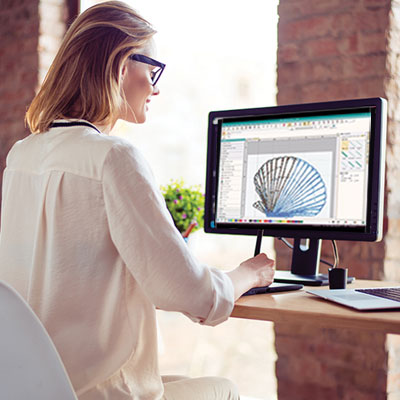

You have a Babylock embroidery machine—a fantastic tool for bringing your creative visions to life. You also have a logo, ready to be stitched onto a hat, bag, or polo shirt. But when you try to load that JPG or PNG file, your machine doesn’t recognize it. This is the universal starting point: understanding that you don’t just “convert” an image; you must translate it into a language your machine understands. The process to properly Convert Logo To Embroidery For Babylock is a blend of technical skill and artistic judgment. This guide will walk you through every step, from choosing the right file format to the critical digitizing principles that ensure your Babylock produces crisp, professional results every time.
The First Rule: Know Your Babylock’s Language
Before you touch any design software, you need to know what file format your specific Babylock model reads. This is non-negotiable. Babylock machines primarily use the .PES file format. However, depending on the model and generation, they may also read other formats like .PHC, .VIP, or .VP3.
Here’s your action plan:
-
Check your manual. It will list the compatible file formats.
-
Do a quick online search for “[Your Babylock Model Number] embroidery file format.”
-
When in doubt, .PES is almost always the safe bet for modern Babylock machines.
Your goal is to end up with a file that has the correct extension (.PES) that contains clean, efficient stitch data. Getting there is the art of digitizing.
Understanding “Digitizing” vs. “Converting”
This is the most important concept to grasp. You might find online tools that promise to “convert JPG to PES.” These are auto-digitizers, and they typically produce low-quality results. True digitizing is a manual, thoughtful process.
-
“Converting” (Auto-Digitizing): A computer algorithm traces your image and makes guesses about stitch types and placement. It often ignores critical factors like fabric type, leading to dense, puckered, or unsewable designs.
-
Digitizing: A human specialist uses software to manually plot the stitch path. They decide where every stitch goes, what type it is, its direction, length, and sequence—all while accounting for the pull of the thread and the behavior of your specific fabric.
For a logo that represents your brand or a project you care about, only professional digitizing will deliver quality worthy of your Babylock machine.
The Two Paths: DIY Digitizing vs. Professional Services
You have two main avenues to get your logo machine-ready.
Path 1: DIY Digitizing (The Learning Route)
If you want to learn the craft and have simple logos, you can use digitizing software.
-
Software Options: Babylock’s own ArtLink software or Inspira suite is designed to work seamlessly with their machines. Other options include Embird, SewArt, or the industry-standard Wilcom Hatch (which offers a free trial). Free, open-source Ink/Stitch for Inkscape is also a powerful learning tool.
-
The Basic DIY Process:
-
Import Your Logo: Bring a clean, high-contrast image into the software.
-
Trace and Define Areas: Use tools to trace the outlines of different color sections.
-
Assign Stitch Types: Designate areas as Fill Stitch (for solid blocks), Satin/Column Stitch (for borders and text), or Running Stitch (for fine details).
-
Set Parameters: Adjust stitch density (lower for knits, higher for stable fabrics), add underlay (a foundation stitch to prevent puckering), and set pull compensation.
-
Sequence the Stitches: Order the color changes and stitch objects logically to minimize jumps.
-
Export as .PES: Save or export the final design in your Babylock’s format.
-
Path 2: Professional Digitizing Services (The Quality & Time-Saving Route)
For intricate logos, important projects, or if you simply don’t have the time to learn a complex new skill, outsourcing is the smart choice.
-
The Process: You send your logo (preferably a vector .AI, .EPS, or .PDF file) to a service. A trained digitizer creates the stitch file, often providing a proof. You receive a ready-to-stitch .PES file, optimized for your specified garment.
-
Why This Often Wins: Professionals get it right the first time. They understand how to digitize for different materials—a crucial step for ensuring your logo looks perfect on a stretchy t-shirt versus a stiff cap. The cost ($10-$30) is usually far less than the value of your time and the materials wasted on a failed DIY attempt.
Critical Factors for Babylock Success
Whether you DIY or hire a pro, these principles are key to a perfect sew-out on your Babylock:
-
Start with Clean Artwork: The better your source file, the better the embroidery. Vector files (.AI, .EPS) are king. They allow for infinite scaling without quality loss. If you only have a raster image (.JPG, .PNG), make sure it’s high-resolution.
-
Consider the Garment (Stabilizer is Key!): Your digitizing choices depend on what you’re stitching. A dense design for a towel needs different settings than the same design for a lightweight polo. Always use the appropriate stabilizer hooped with your fabric; this is your machine’s “work surface” and is critical for clean results.
-
Simplify for Size: Tiny, intricate details in a logo may not stitch well on fabric. A good digitizer will simplify elements to maintain clarity at a small scale (like on a hat brim). Be prepared for this conversation if using a service.
-
The Non-Negotiable Test Sew: Never stitch your new design directly onto your final project. Always run a test sew on a scrap piece of the same fabric, backed with the same stabilizer. Look for puckering, thread breaks, registration issues, or color problems. This is your chance to make adjustments.
Common Pitfalls to Avoid
-
Pitfall: Using an Auto-Converter Online: The resulting .PES file will likely cause frustration, poor quality, and wasted materials.
-
Pitfall: Skipping the Test Sew: This leads directly to ruined final products.
-
Pitfall: Ignoring Stabilizer: Even a perfectly digitized file will fail without the correct stabilizer to support the fabric.
-
Pitfall: Overlooking Hooping Technique: Fabric must be drum-tight in the hoop. Loose fabric is the main cause of misalignment.
Your Step-by-Step Action Plan
-
Identify: Confirm your Babylock uses .PES files.
-
Prepare: Gather your logo in the highest-quality format possible.
-
Choose Your Path: Decide to learn DIY digitizing (start with Ink/Stitch or a software trial) or hire a professional service.
-
Digitize or Order: Create the file yourself or submit your order to a service, specifying the garment type.
-
Test: Hoop scrap fabric with stabilizer and run the design. Inspect critically.
-
Stitch: Only after a successful test, proceed to your final project.
Conclusion: From Digital Logo to Tangible Brand
Learning how to Convert Logo To Embroidery For Babylock is the essential skill that bridges the gap between your digital ideas and the physical, textured beauty of embroidery. It requires patience and an understanding that you are not simply changing a file extension, but engineering a set of instructions for your machine.
By respecting the process—prioritizing quality source files, understanding the importance of fabric and stabilizer, and never skipping the test phase—you empower your Babylock to perform at its best. Whether you embark on the rewarding journey of learning to digitize or partner with a professional, the result is the same: a flawlessly stitched logo that does justice to your design and showcases the true capability of your machine. Your Babylock is ready; now you have the blueprint to feed it perfection.